
In short
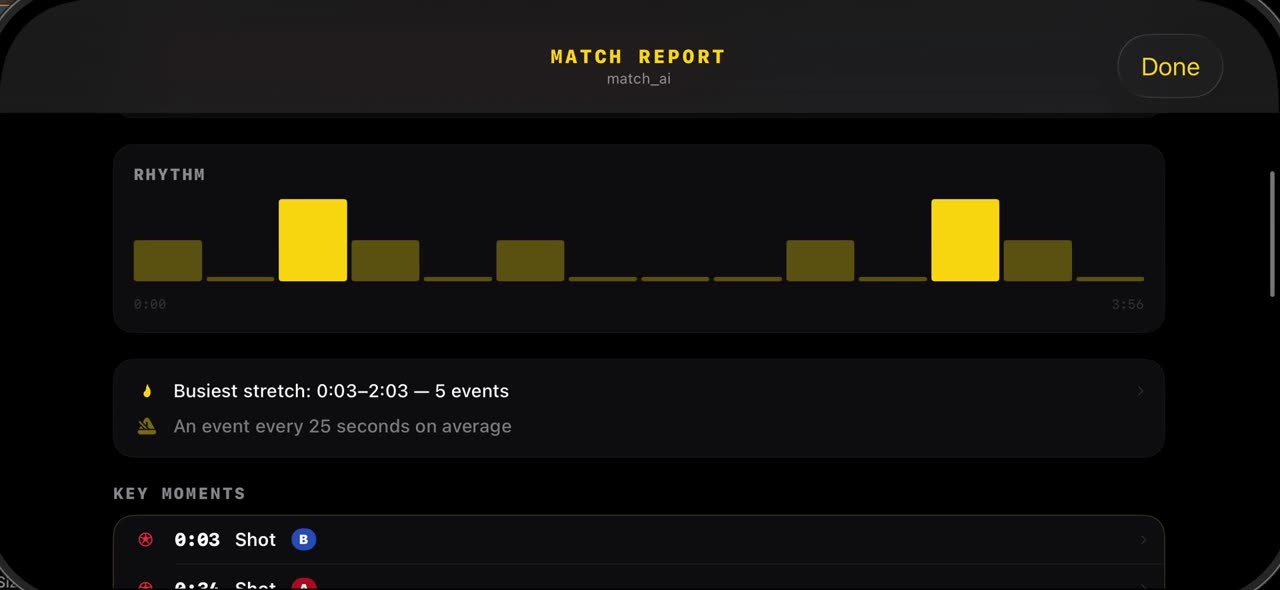
After the scan, open Studio and tap Match Report: the shots the scan found, the possession split and the rhythm of the game are already there, from your own film. Scroll down and the rhythm bars show when the game was fast and when it slowed, and the key moments underneath jump straight to the frame — so the team talk starts from the report. Nothing here was typed in: every number comes from the scan of your match, on your device. iPhone and iPad.
Step by step
Open the report
After the scan, open Studio and tap Match Report. The shots the scan found, the possession split and the rhythm of the game are already there, from your own film.
On screen: Studio → Match Report: shots found by the scan, possession, rhythm.
Key moments
Scroll down. The rhythm bars show when the game was fast and when it slowed, and the key moments underneath jump straight to the frame, so the team talk starts from the report.
On screen: Scroll: the rhythm bars show when the game was fast, the list jumps to each moment.
Back to the frame
One tap on Done, and you are back on the frame. Nothing here was typed in: every number comes from the scan of your match, on your device.
On screen: Done closes the report. Nothing was typed in: it all comes from the scan.
What you need
- An iPhone or iPad with iOS 17 or later (or a Mac).
- TacticalSnap from the App Store. It is free to download and every analysis tool is free.
- A match video in Photos or Files. Any camera works, even a phone on the touchline.
Try it on your own footage
TacticalSnap runs the whole loop on an iPhone or iPad, on the device. Analysing is free and unlimited; exporting video is the only paid step.
More in this section
 0:40
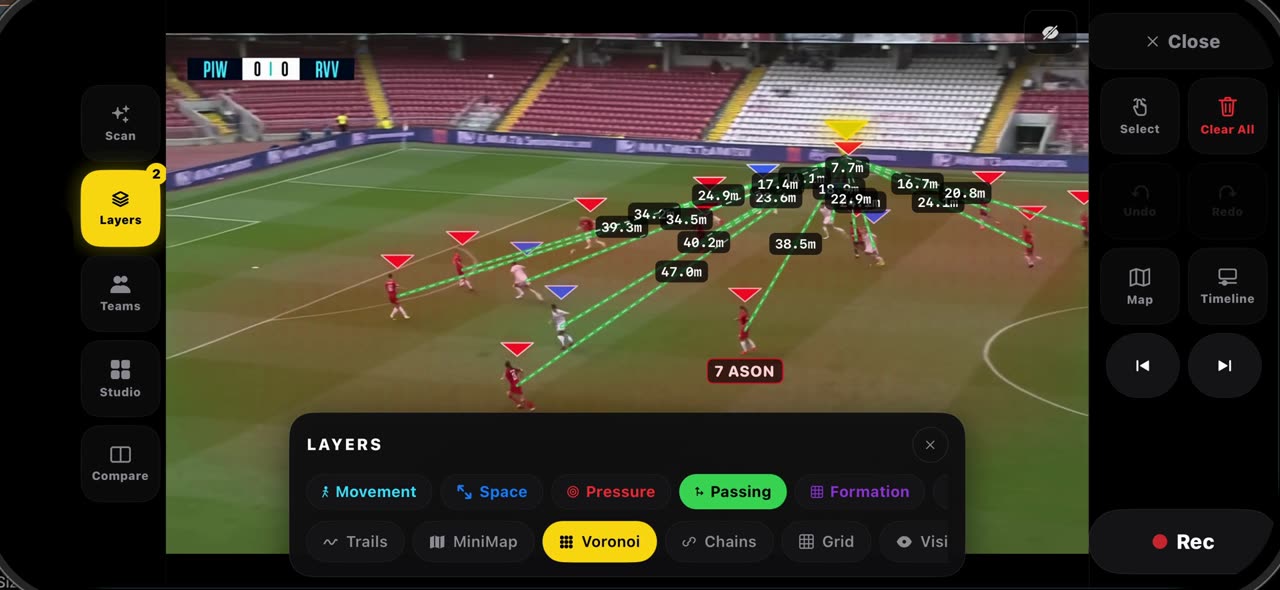
0:40How to read a frozen frame with the layers in TacticalSnap
Open Layers on a frozen frame.
 0:34
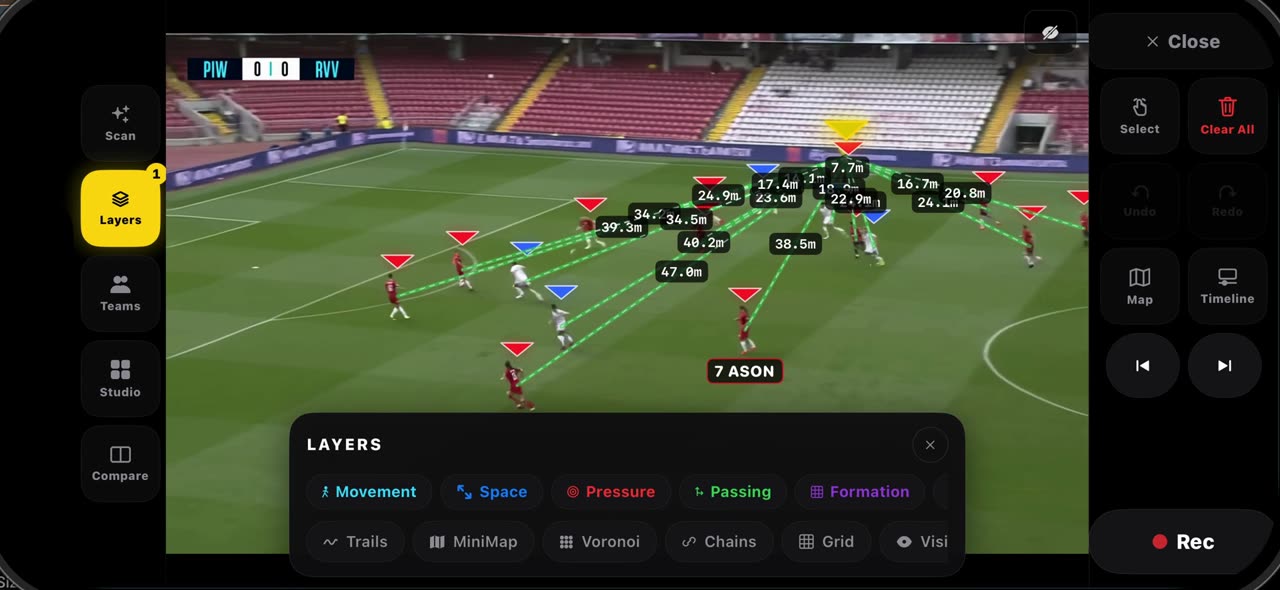
0:34How the pitch is calibrated in TacticalSnap, and what it gives you
When you freeze a frame, the lines of the pitch are read and the frame is calibrated by itself — no corners to tap; the badge at the top says when…
 0:34
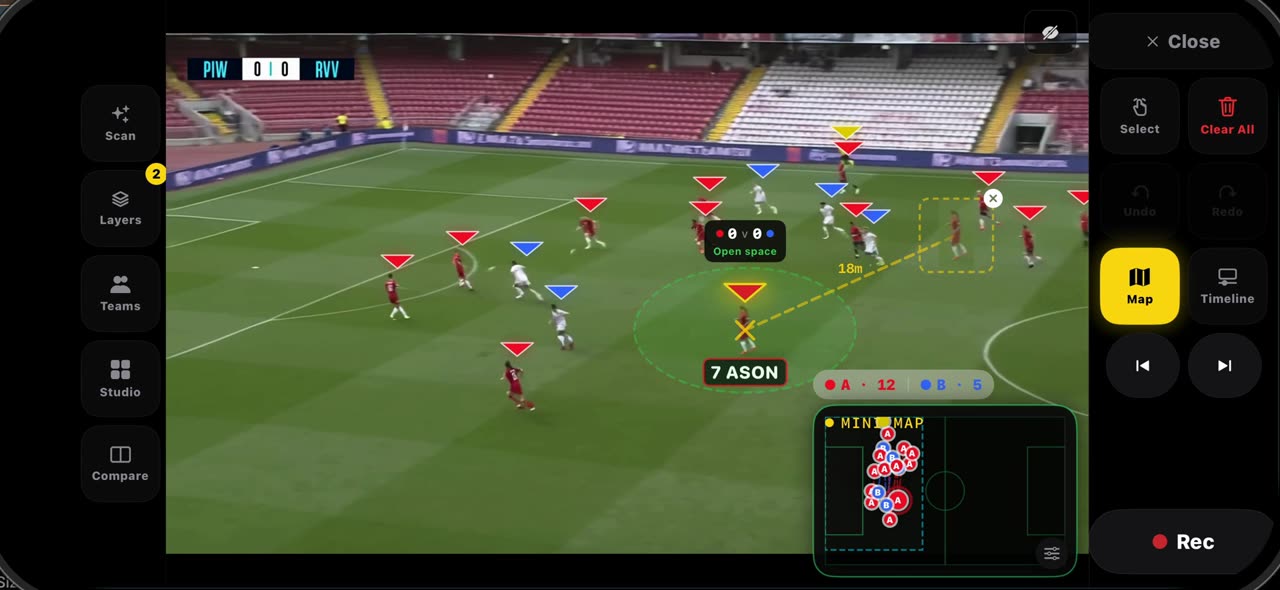
0:34How to use ghost players and Connect in TacticalSnap
Hold your finger on a player on a frozen frame and pick Ghost: a translucent copy of him, cut from the frame, appears next to the real one with a…
 0:33
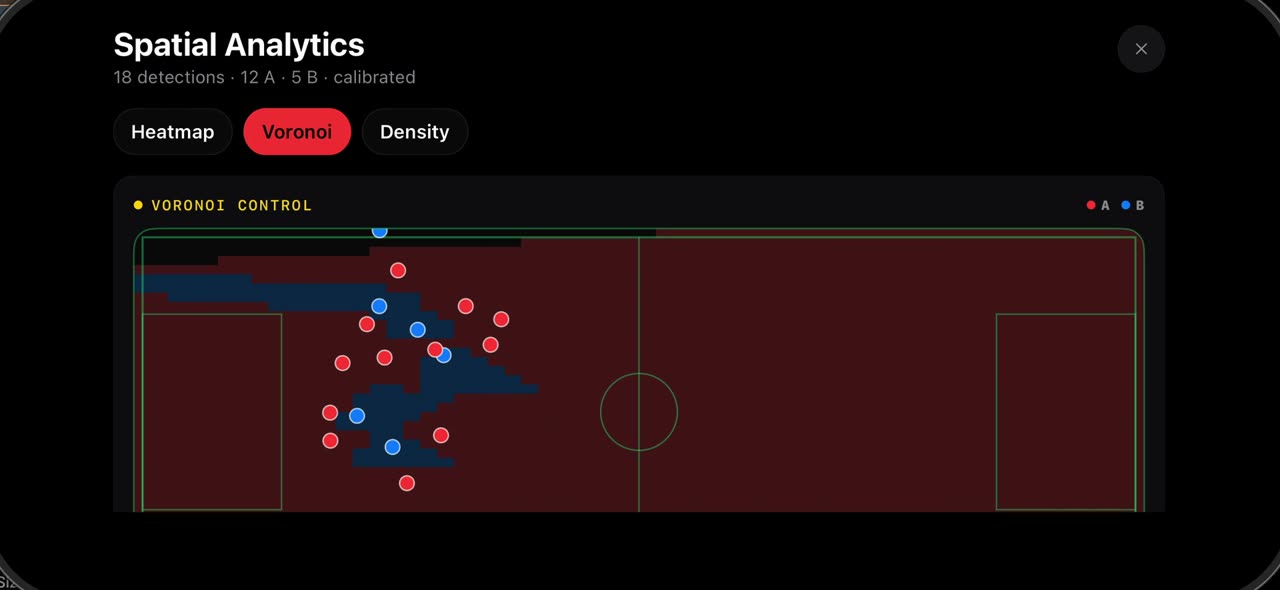
0:33How to see where your team played: heatmap, Voronoi and density in TacticalSnap
Open Studio and tap Spatial Analytics.
 0:38
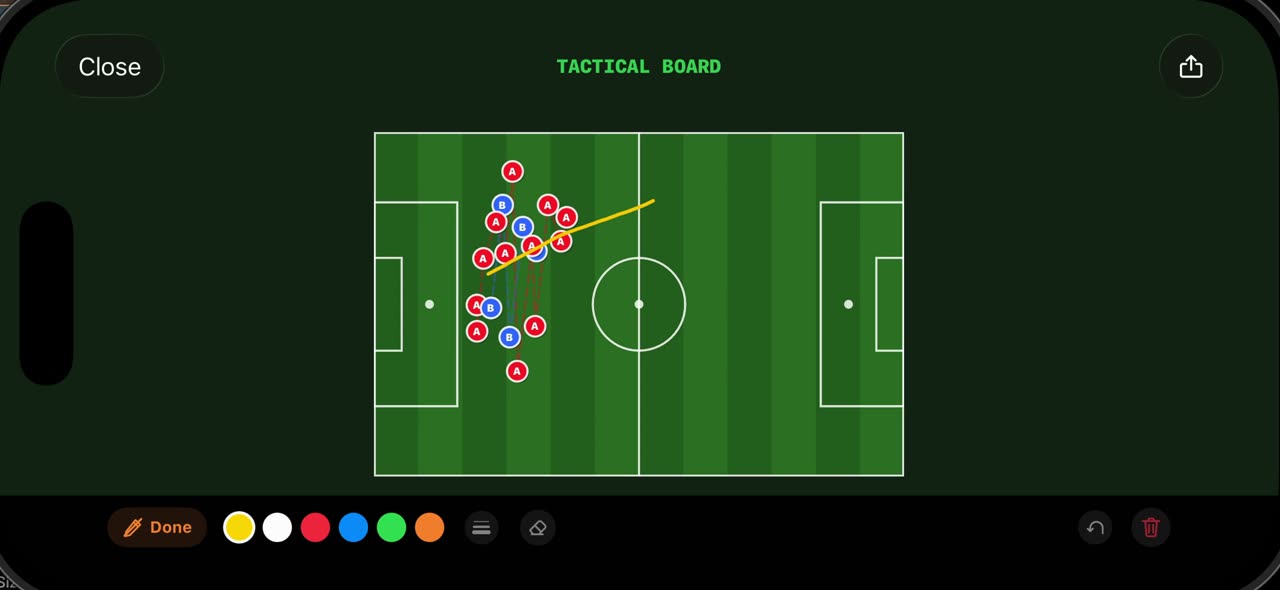
0:38How to use the Tactical Board and Hand-Drawn mode in TacticalSnap
Open Studio on a frozen frame and tap Tactical Board: the frame is redrawn as a 2D board from above, with every player the scan found placed where…
 0:38
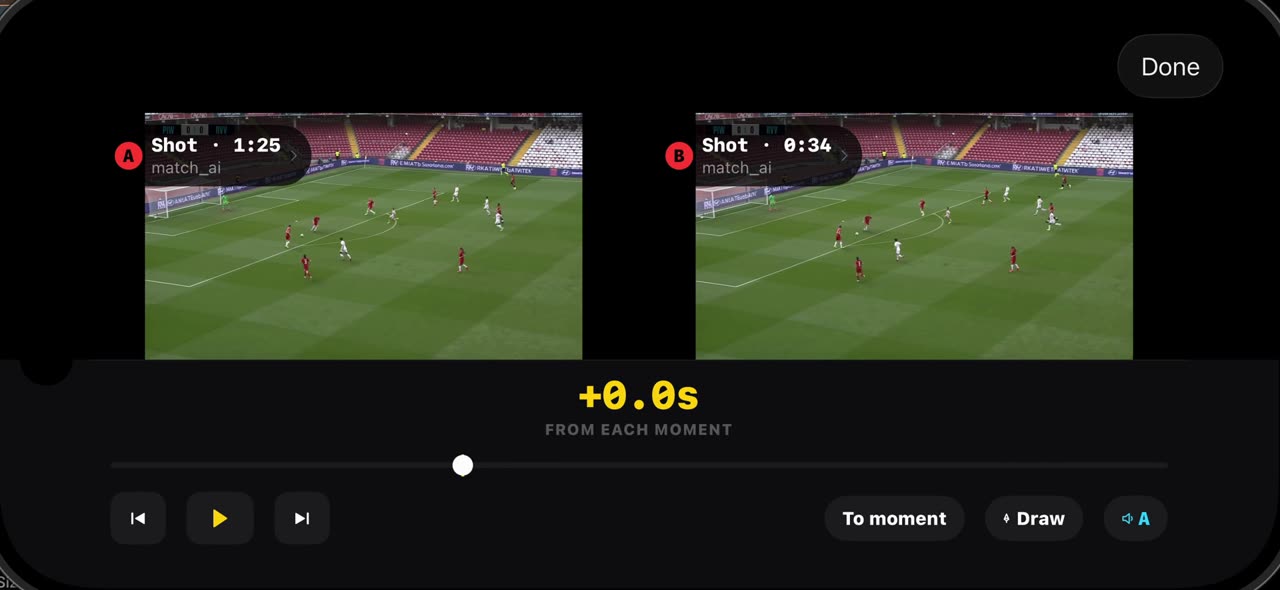
0:38How to compare two moments of a match in TacticalSnap
Compare puts two moments of your own match side by side.