
In short
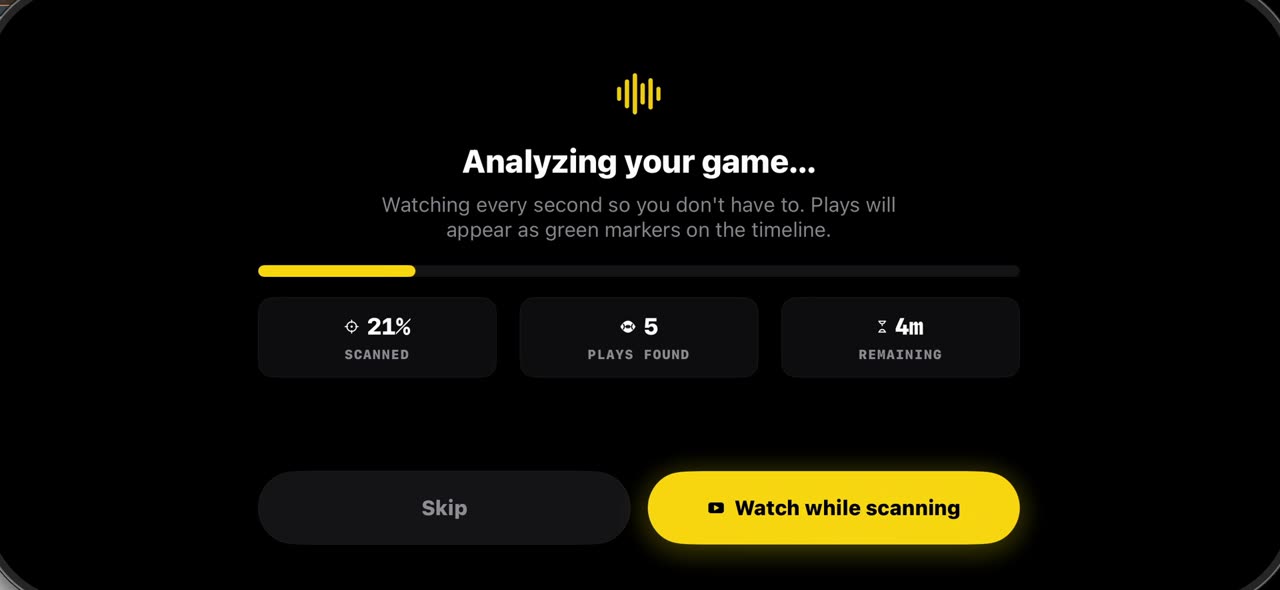
Pick the game film from Photos and the pre-scan watches every second, marking each play on the timeline: snaps in green, big plays in purple. In the test game it marked thirteen plays in about five minutes on the device. Open the editor and every snap is one tap away instead of a long scrub through the tape. There is no format to choose, because a football game is always eleven on eleven. Everything stays on your device. iPhone and iPad.
Step by step
Pick the game film
In TacticalSnap, tap New Project and open your Photos library. Pick the game film. There is no format to choose, because a football game is always eleven on eleven.
On screen: New Project → Photos Library → your game. No format row: always eleven a side.
It watches every snap
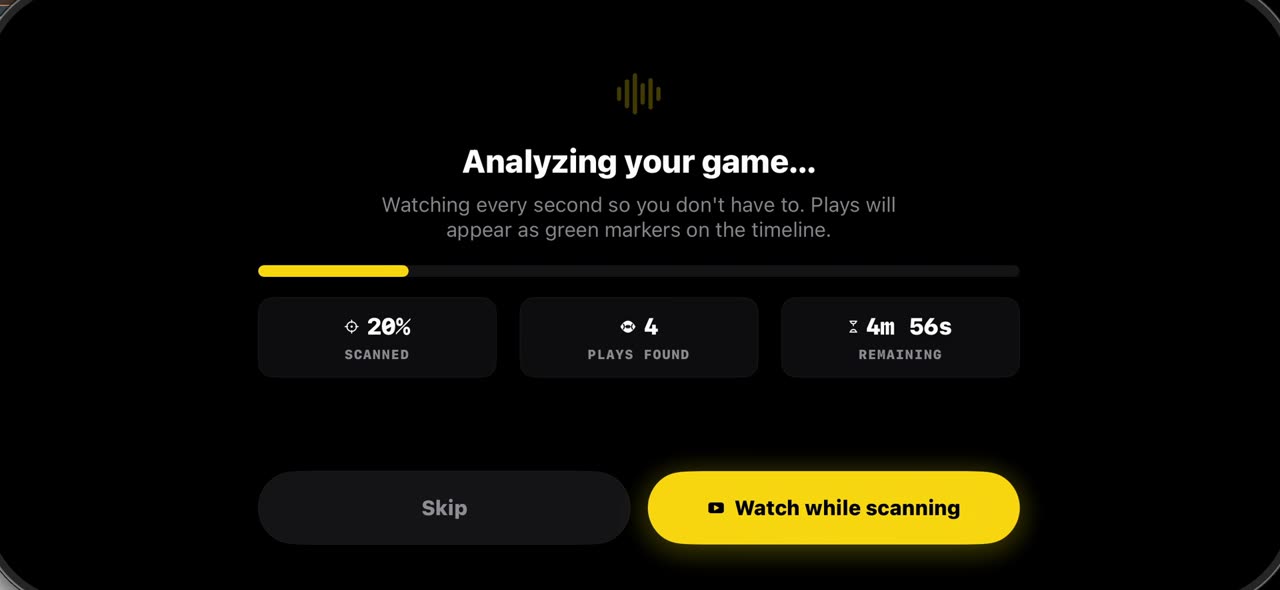
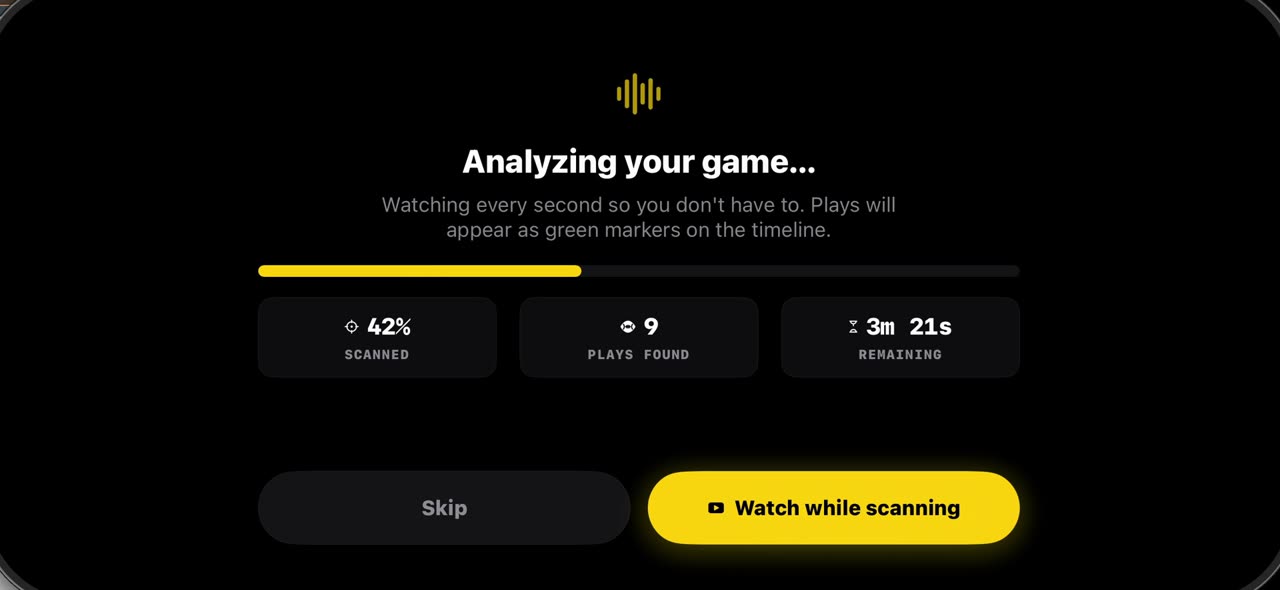
The pre-scan starts right away and watches every second of the film, so you don't have to. Each play it finds becomes a green marker on the timeline.
On screen: The pre-scan watches every second. Plays appear as green markers.
Game analyzed
When it is done, you see how many plays were marked. Then tap Open editor, and every snap is one tap away instead of a long scrub through the tape.
On screen: Game analyzed: thirteen plays marked. Open the editor, tap a marker to jump.
What you need
- An iPhone or iPad with iOS 17 or later (or a Mac).
- TacticalSnap from the App Store. It is free to download and every analysis tool is free.
- Game film in Photos or Files. Any camera works, even a phone on the sideline.
Try it on your own film
TacticalSnap runs the whole loop on an iPhone or iPad, on the device. Breaking down film is free and unlimited; exporting video is the only paid step.
More in this section
 0:31
0:31Freeze a snap and see every player, offense and defense
Open the timeline under your game film: green markers are snaps, purple ones big plays.
 0:30
0:30Record a play breakdown with your voice on the frozen snap
Freeze the snap and draw the plan first: from the palette pick the arrow and draw the blocks, and everything on the frame opens your video.
 0:36
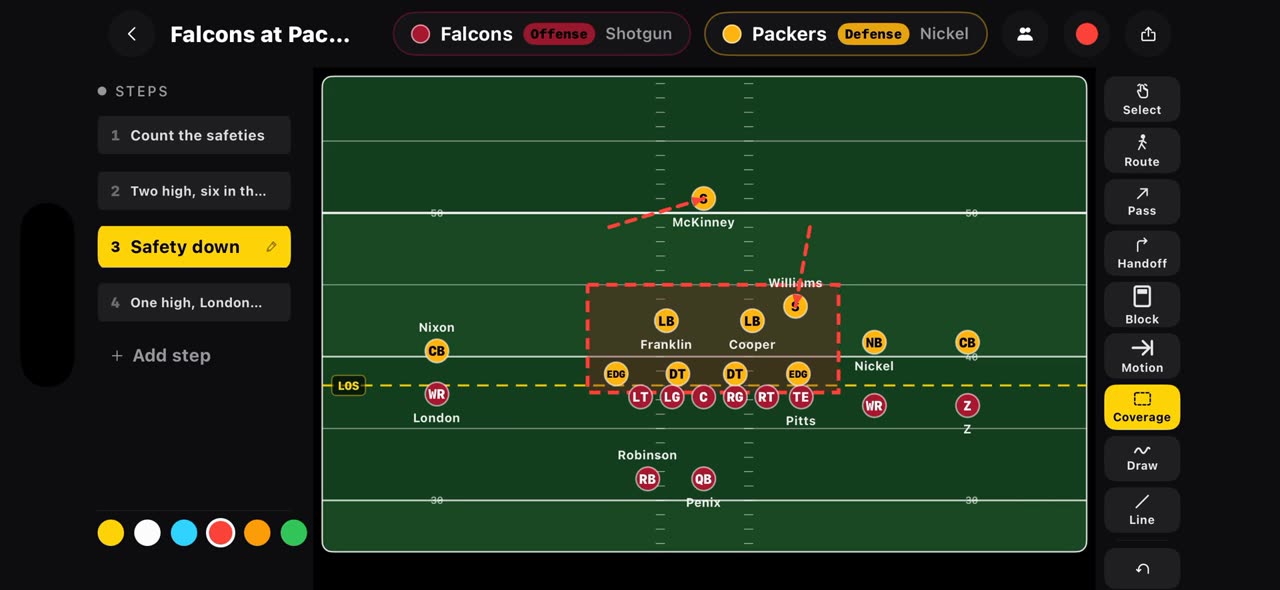
0:36Build a football game plan step by step and record it
On a football board every step is a snap.
 0:36
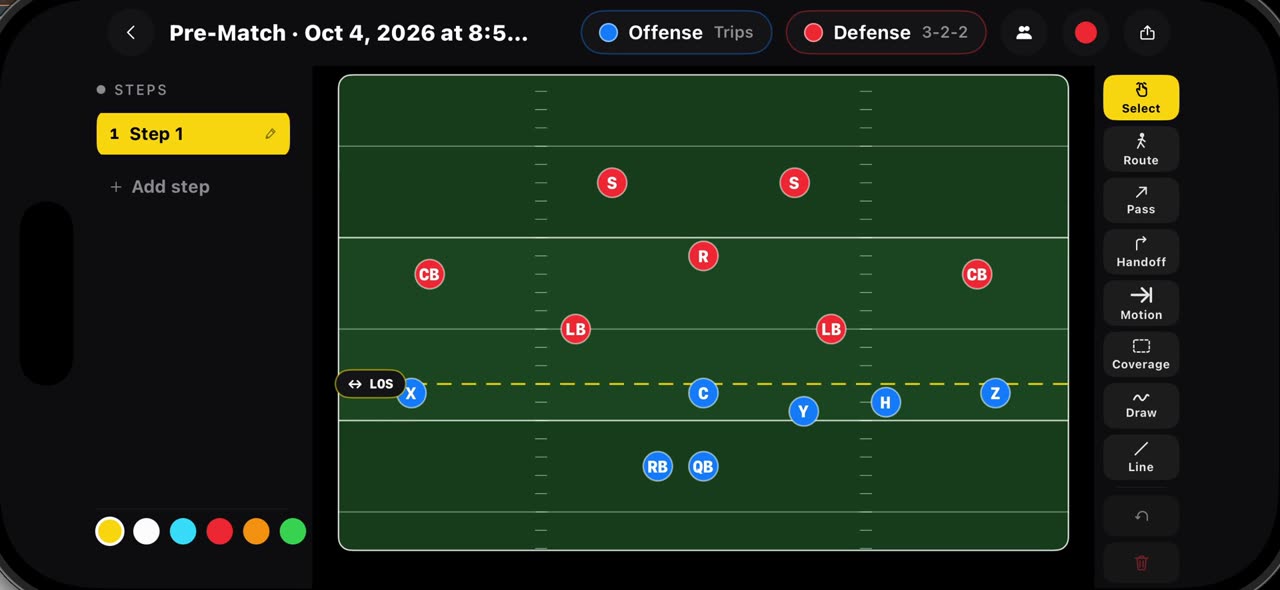
0:36Draw flag football plays on a real flag field, 7v7 and 5v5
Hold your finger on Pre-Match and pick a flag board: seven on seven starts with Trips against a three, two, two, five on five with Trips against a…
 0:35
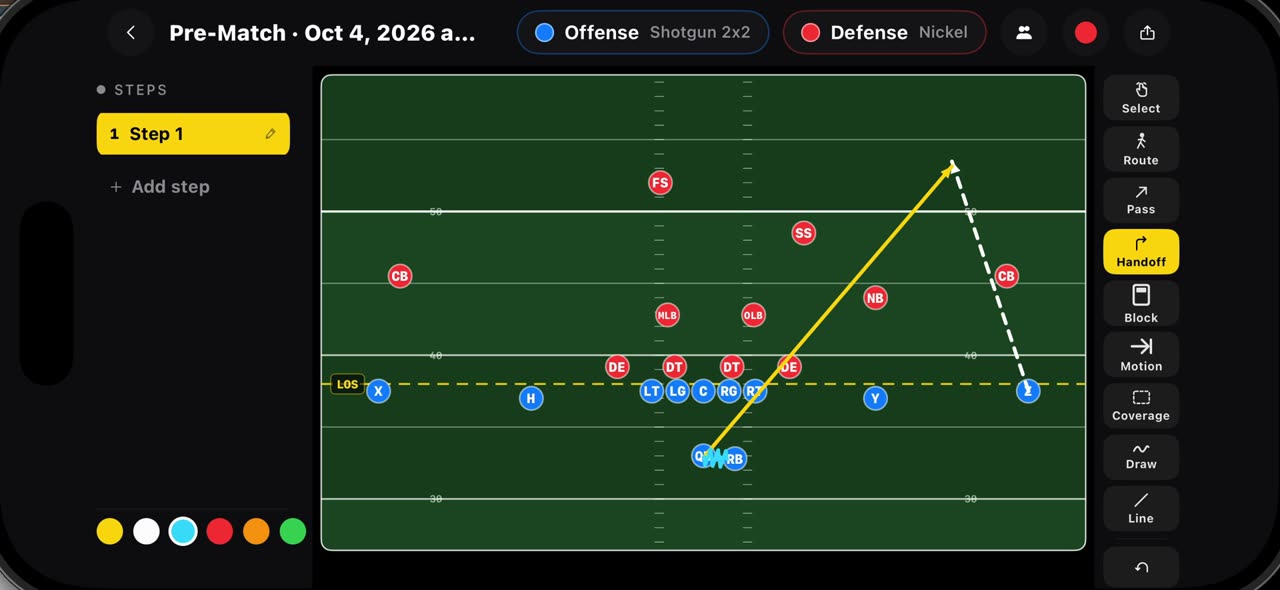
0:35Draw routes, passes, handoffs, blocks, motion and coverage
Every mark on the football board has its own tool.
 0:35
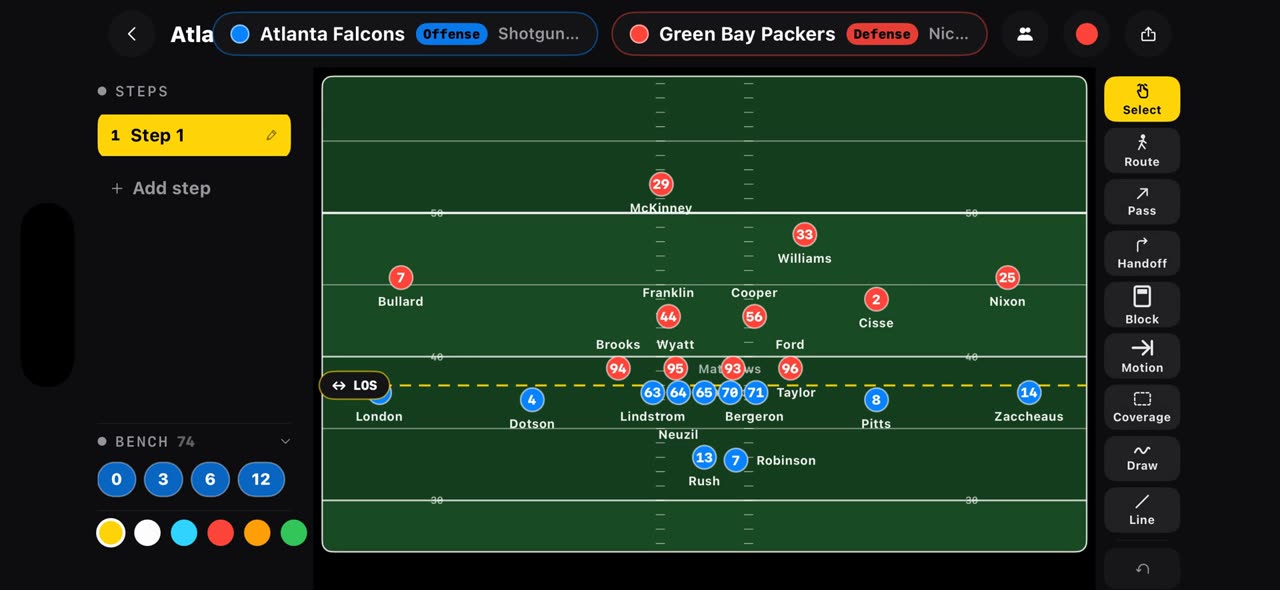
0:35Open any NFL matchup on a play board from one link
Put the offense and the defense in one link, tactikalsnap.com/prematch?offense=ATL&defense=GB, and the app opens the board on an NFL field: the…