
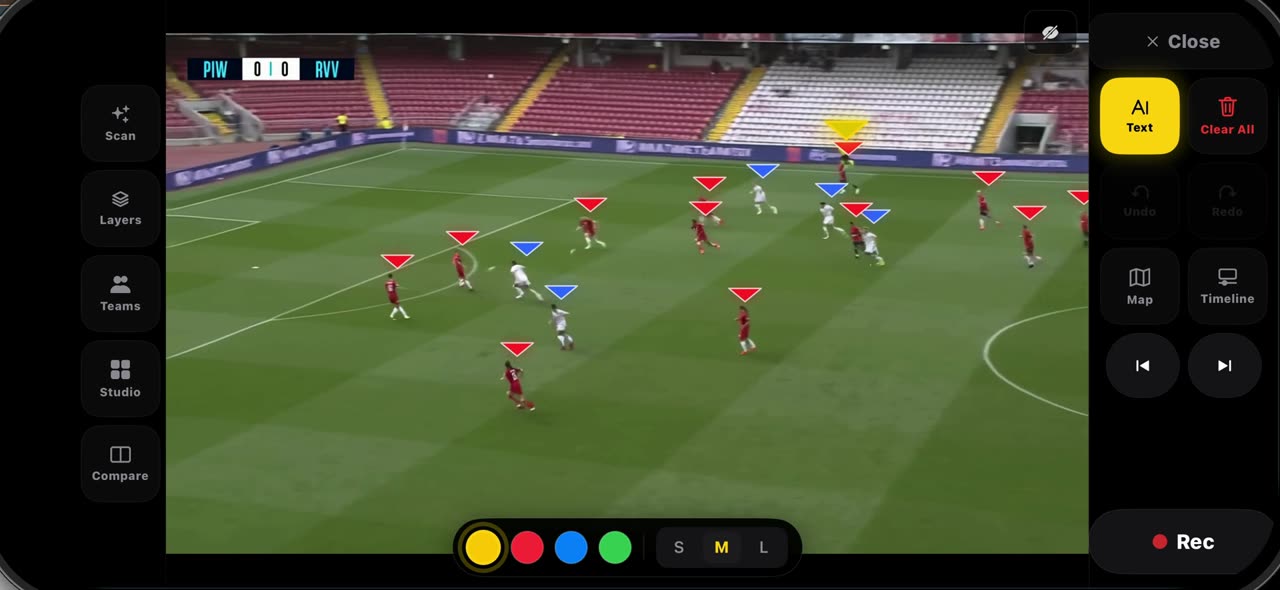
In short
Pick Text from the palette and tap where the note belongs — a name, a distance, a reminder — then tap Add: the label is anchored to that spot on the frame and shows in every clip you record from it. Hold your finger on a label to delete it. Laser is for talking: the trail follows your finger and fades, so you can point at a run or a gap while you explain, without leaving a mark on the frame. Everything stays on your device. iPhone and iPad.
Step by step
Add a label
Pick Text from the palette and tap where the note belongs. Type it, a name, a distance, a reminder, and tap Add. The label is anchored to that spot on the frame.
On screen: Text → tap the frame, type the note, Add. The label is anchored there.
Long-press to remove
Hold your finger on a label to delete it. Labels stay on the frame and show in every clip you record from it.
On screen: Hold a label to delete it. Labels show in every clip you record.
Laser pointer
Laser is for talking: the trail follows your finger and fades, so you can point at a run or a gap while you explain, without leaving a mark on the frame.
On screen: Laser: a trail that follows your finger and fades. Nothing stays on the frame.
What you need
- An iPhone or iPad with iOS 17 or later (or a Mac).
- TacticalSnap from the App Store. It is free to download and every analysis tool is free.
- A match video in Photos or Files. Any camera works, even a phone on the touchline.
Try it on your own footage
TacticalSnap runs the whole loop on an iPhone or iPad, on the device. Analysing is free and unlimited; exporting video is the only paid step.
More in this section
 0:43
0:43How to import a match into TacticalSnap (and what the first scan finds)
Match analysis starts with your own film, not a broadcast.
 0:35
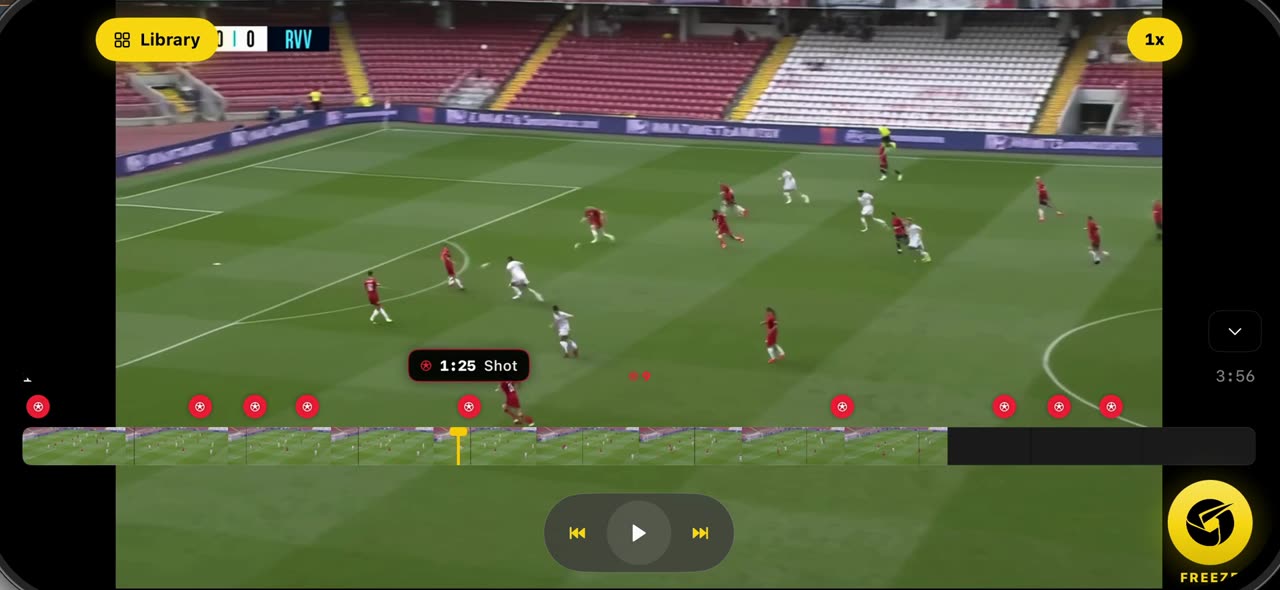
0:35How to freeze a moment and scan the players in TacticalSnap
Open the match you imported: the scan has already marked every shot as a red dot on the timeline.
 0:42
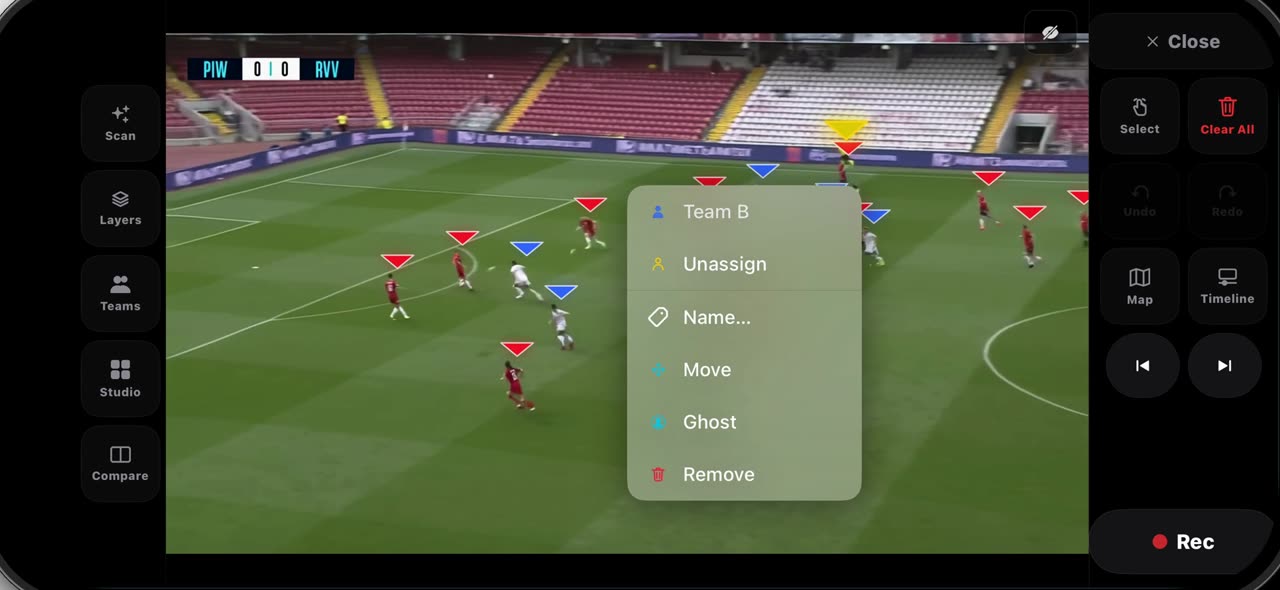
0:42How to fix the teams on a frozen frame in TacticalSnap
After Freeze every player wears a triangle — red for Team A, blue for Team B — and on a crowded frame one player can land on the wrong side.
 0:40
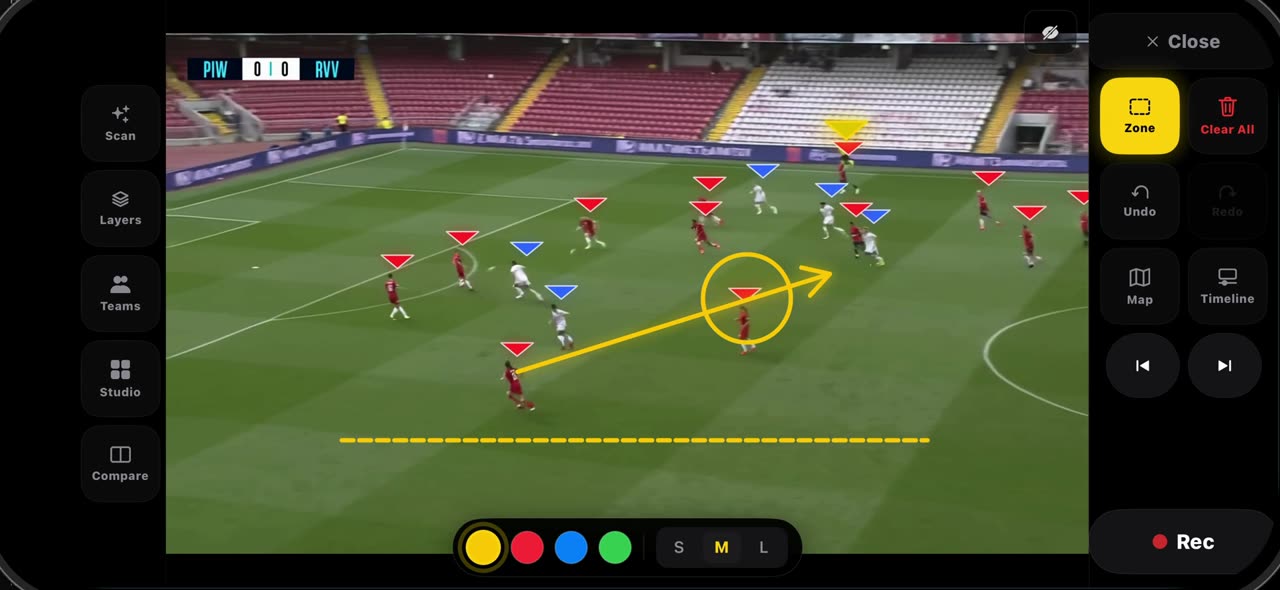
0:40How to draw on a frozen frame in TacticalSnap (arrow, line, circle, zone, freehand)
Hold the Select tile and the palette opens.
 0:33
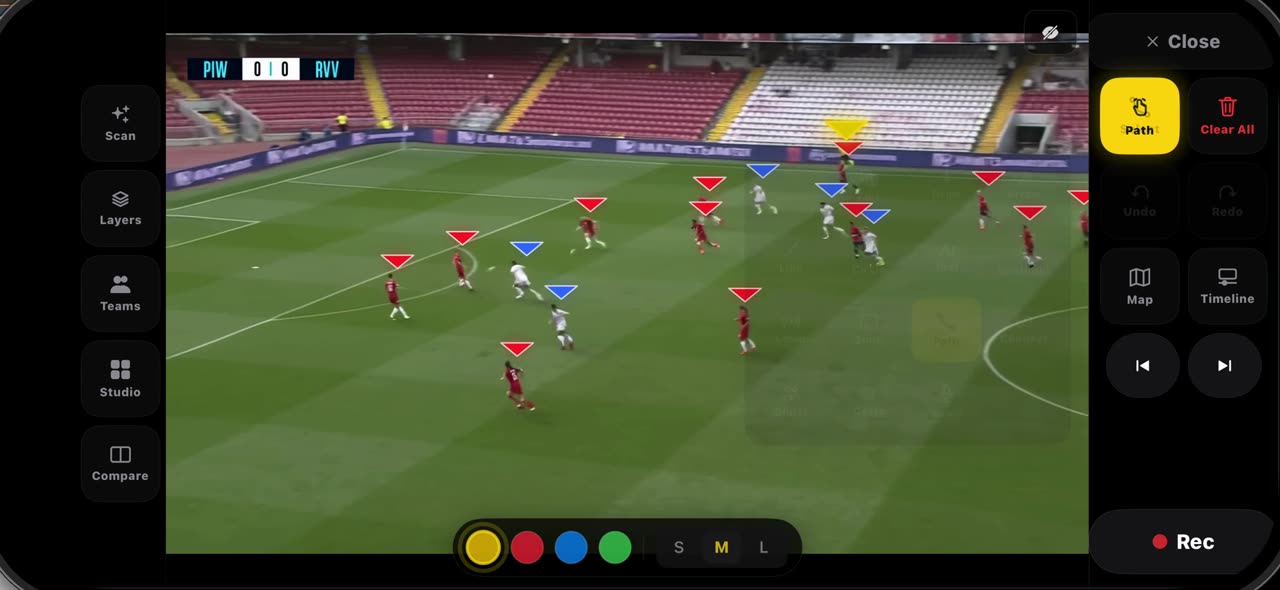
0:33How to spotlight a player and draw his run in TacticalSnap
Pick Spotlight from the palette: the frame dims, the ball carrier gets the ring and the other players keep their team letters — pick it again and…
 0:30
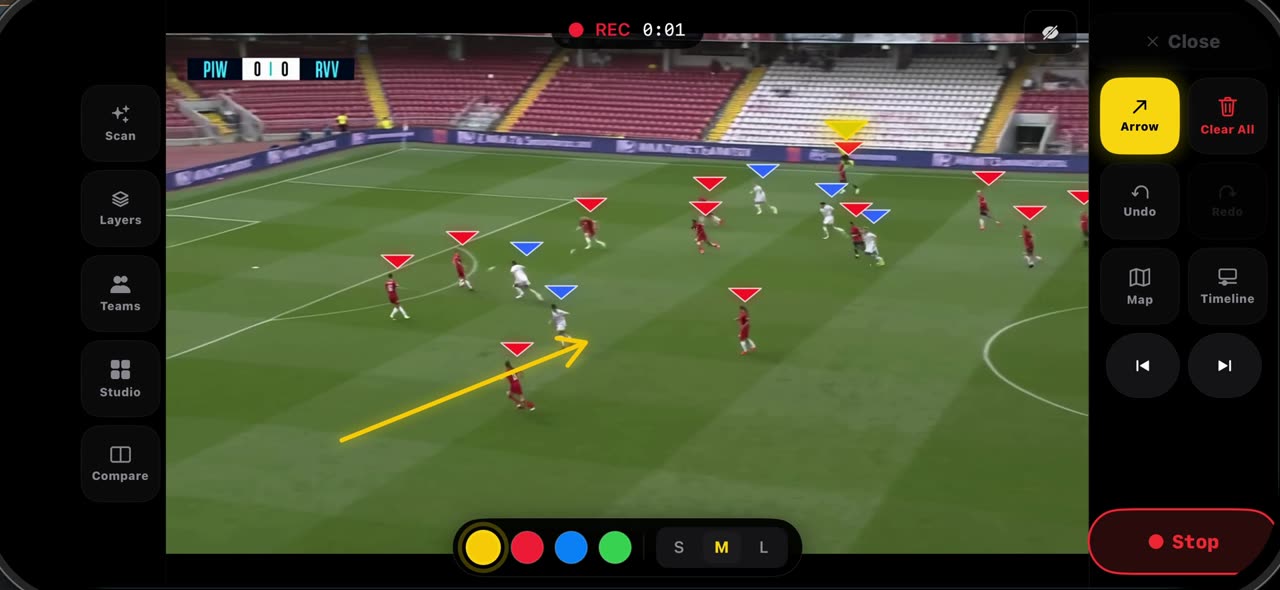
0:30How to record a take on a frozen frame in TacticalSnap
Set the frame up before you record — the line, the space, the first arrow — because whatever is on the frame when you press Rec opens the clip.